Articles in category: “How To”

As a realtor, you will always have many leads to manage and prioritize. You will have different information about each client and the worst thing you can do is be disorganized and miss out on any information that will help with you sell.
Continue reading…
Apple released the iPhone 12 at the height of the Covid-19 pandemic, but the pandemic couldn’t stop people from getting to the Apple store to purchase the sleek phone. You could be among these people who have upgraded to iPhone 12 or switched from Android to iPhone 12, and you want to sync your Google business contacts to it.
Continue reading…
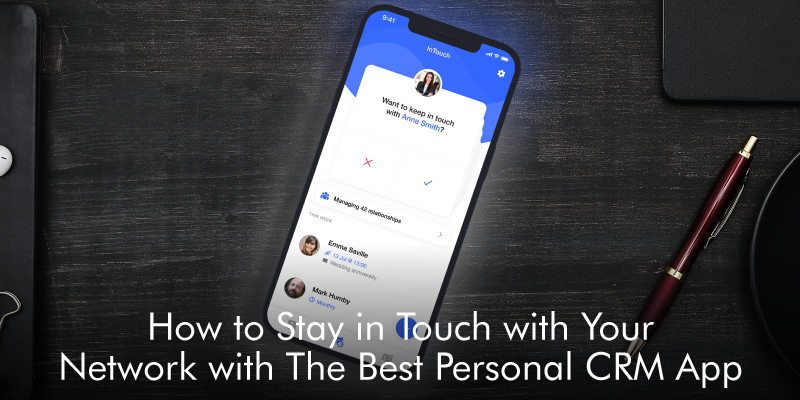
Are you struggling to network at this age of social distancing? If there is something that we have learned from the year 2020, it is the importance of change and keeping in touch with people. Companies have adopted remote working, and HR professionals have embraced remote staffing. On the other hand, people are embracing new ways to connect with people to explore opportunities, seek jobs and maintain relationships.
Continue reading…
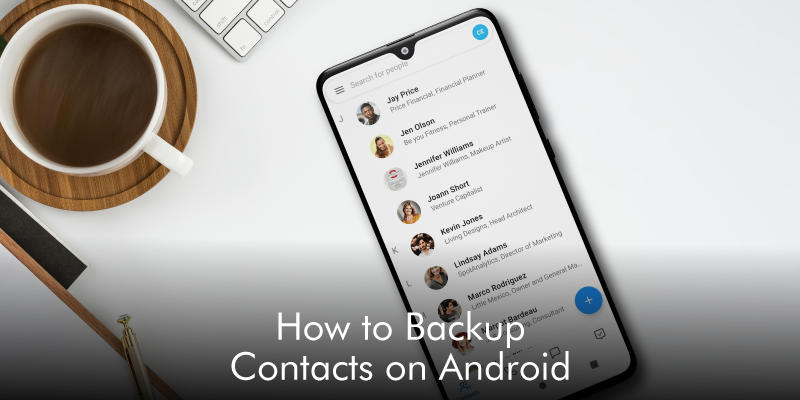
The struggle of losing contacts on your Android device is very real, when you don’t have a way to retrieve them. How will you talk to your friends, business partners, or family members if you don’t have contacts? Not to mention that nobody remembers phone numbers by heart anymore. To avoid a bad situation like this, Android allows users to back up their contacts on Google.
This way, users can retrieve their contacts in case they lose them for whatever reason. It’s also very handy when switching to a new device. Backing up Android contacts on Google is not a complicated task. In this article, we will give you a thorough guide on how to backup contacts on Android.
How to Backup Contacts on Android
Step 1. Once you have opened your Android device, navigate to the “Settings” app.
Step 2. From the variety of listed settings, locate and tap the “Accounts” option.
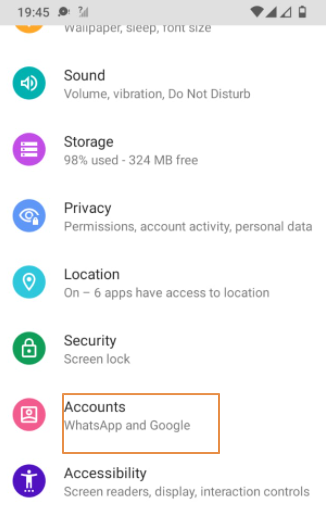
Step 3. If you have already set up your account with the Android device, you should see your Gmail account listed. Select that Gmail account to proceed. If you haven’t set up an email account with this Android device, simply hit “Add account” and follow the on-screen instructions to finish the setup.
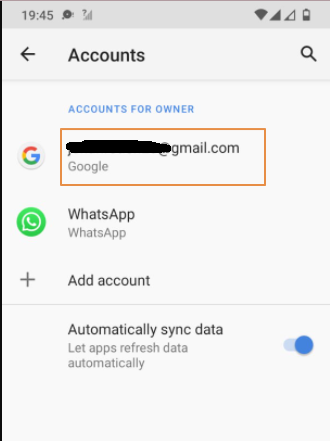
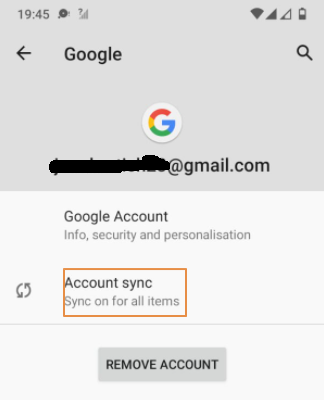
Step 4. Now click the “Account Sync” option and you will be taken to a new screen with several apps whose data can be backed up.
Step 5. Ignore the other apps and turn on the “Contacts” option by dragging its slider to the right.
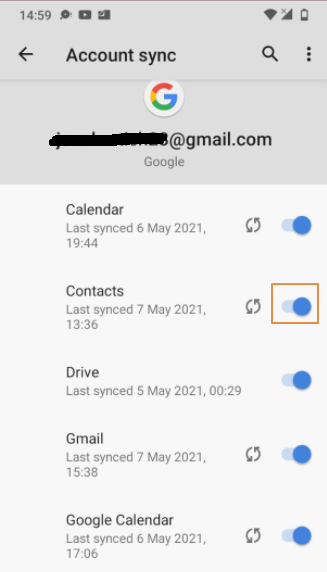
Your contacts are now backed up to your Google account. When you lose your Android contacts, you can retrieve them from your Google account with ease.
Final Thoughts
Backing up contacts on your Android is a crucial step because you are always assured that you can seamlessly retrieve your contacts in case of contacts loss. However, if you have myriads of contacts on your phone, you probably need to manage them effectively. Say you want to schedule calls, write short notes about certain contacts for ease of remembrance, conveniently add contacts from business cards, and build your network with ease. You need a good personal Customer relationship management (CRM) tool. Fortunately, Covve is the best personal CRM tool for you. It seamlessly transforms the way you manage your contacts and takes your contacts networking to another level. Download Covve today to get unmatchable address management on your device.
Continue reading…
Do you have a new phone and want to seamlessly transfer your contacts from the old phone to the new one? Whether you misplaced the phone, damaged it, or just decided to purchase a new one, you need your contacts as much as you need your phone. The easiest way to transfer contacts to the new phone is by downloading your contacts from Google Drive. However, you must back up your contacts on Google Drive before you lose them. If this is the case, then you will have a frictionless transfer of contacts. This article takes you through a step-by-step guide on how to download contacts from Google.
For Android Users
Step 1. Open your Android phone and navigate to the “Settings” app.
Step 2. From the “Settings” menu, locate and tap the “Accounts” option.
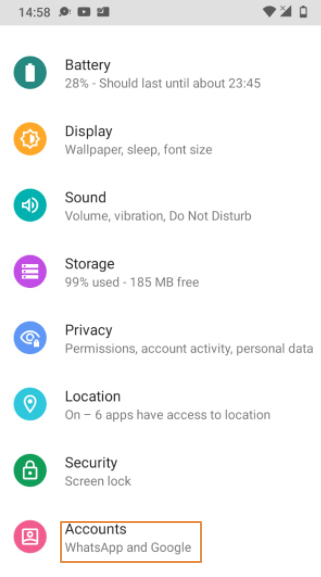
Step 3. Ignore other options and select the “Google” option. You can also add the target Google account by clicking the “Add account” option.
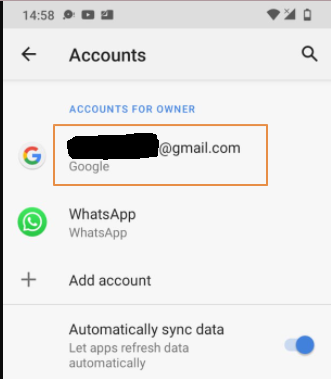
Step 4. Now click the “Account Sync” option, then drag the “Contacts” app slider to sync it with your Google account.
Now your existing contacts will sync with your Google Account. Your contacts will be directly available on your new Android phone.
For iPhone Users
Step 1. Open your iPhone and tap the “Settings” tab.
Step 2. Navigate to the “Mail” section and then choose “Accounts.”
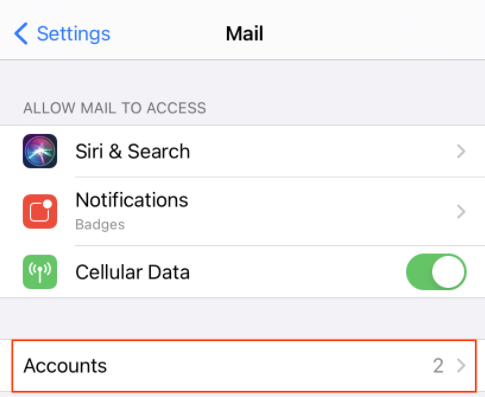
Step 3. Choose your Gmail account in the Accounts section.
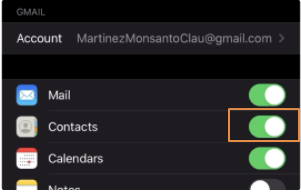
Step 4. After choosing your account, you should see a couple of apps displayed. Ignore the other apps and go to the “Contacts” app. Drag its slider to toggle it on. Your contacts should now be available on your new iPhone.
Just like the Android phone, you cannot download contacts from Google if you didn’t create a backup before you lost your contacts.
The Bottom Line
Well, this guide has seamlessly elaborated on how to download contacts from Google. Once you have these contacts on your device, it is good to manage them for several reasons. Proper contact management boosts your productivity, especially if you work with diverse people or handle a wide range of clients. Here, you need a seamless way to organize your contacts, get automated reminders for important business calls, and nurture your network among others. Fortunately, Covve, a powerful address book, makes this a reality. If you want to skyrocket the way you manage your contacts, then download Covve today.
Continue reading…
Losing phone contacts is the last thing you would want to happen to your phone. How will you reach out to your friends, relatives, colleagues, or business partners without their contacts? Think about the awkward feeling of first asking to know who is calling or texting. The list of miseries brought about by a loss of contact is endless and unforgiving. Fortunately, you can back up your contacts on Google then retrieve them when a disaster strikes. In this article, we will take you through how to back up your contacts on Google.
For Android Users
If you are using an Android phone, the chances are that your contacts are automatically backed up to Google Contacts. Nevertheless, you can always back up your contacts on Google, as explained below.
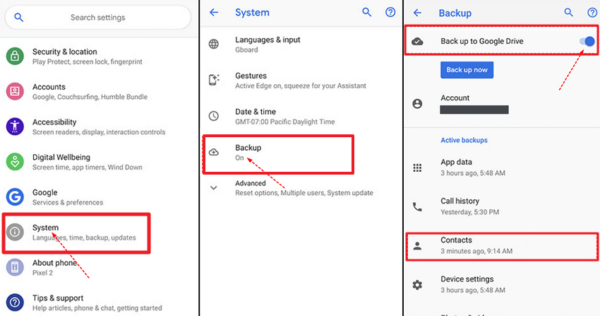
Step 1. Open your Android phone and navigate to the “Settings” menu. From the Settings menu, select “System.”
Step 2. Scroll down the “Systems” screen and hit the “Backup” option.
Step 3. Turn on the “Back up to Google Drive” option.
Your contacts are now backed up to Google. If you lose your contacts, you can always retrieve them from your Google account.
For iPhone Users
Step 1. First, go to App Store on your iPhone and install the “Google Drive” app.
Step 2. Open Google Drive and log in using your credentials.
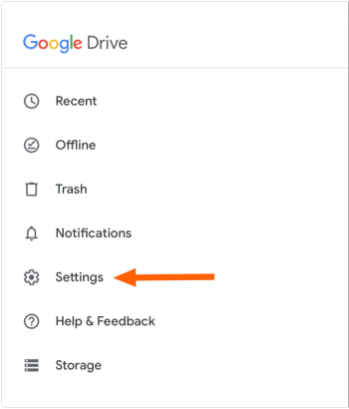
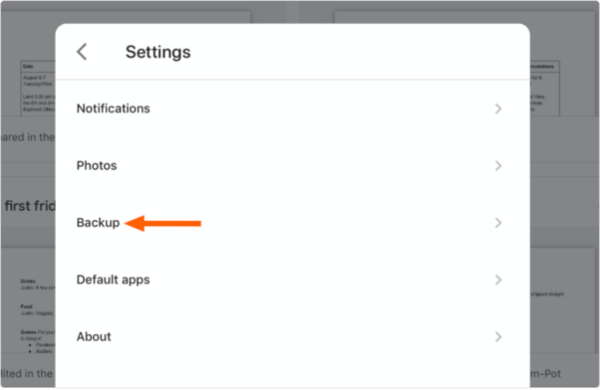
Step 3. Now proceed to the “Settings” tab within Google Drive and then select the “Backup” option.
Step 4. You should now see a “Back up with Google Drive” option on the screen. Here, you can back up contacts, calendar events, photos, and videos. For contacts, just hit the “Contacts” option and follow the on-screen instructions to back up your contacts.
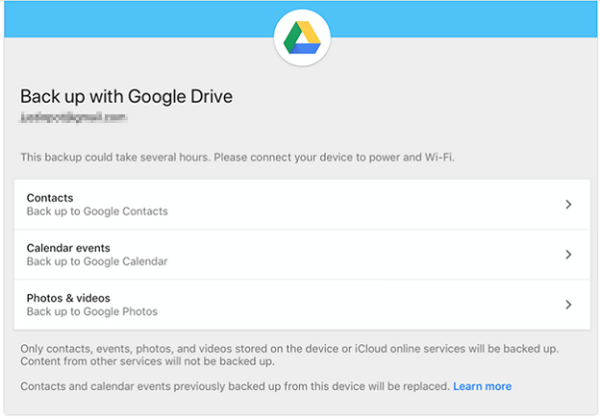
When doing this, make sure your device has enough power and a steady internet connection.
Conclusion
It goes without saying that scores of people worldwide have reaped the benefits of backing up contacts on Google Drive. If your phone is damaged, lost, or stolen, you won’t have a rough time loading your contacts onto your new phone. However, Google Drive is more of a backup than a contact management platform. If you want to manage your contacts in a seamless, flexible, and reliable manner, you need the best dedicated contact manager like Covve. This platform transforms the way you manage your contacts, schedules, and networks like never before. Download Covve to take your contact management and productivity to cloud 9.
Continue reading…
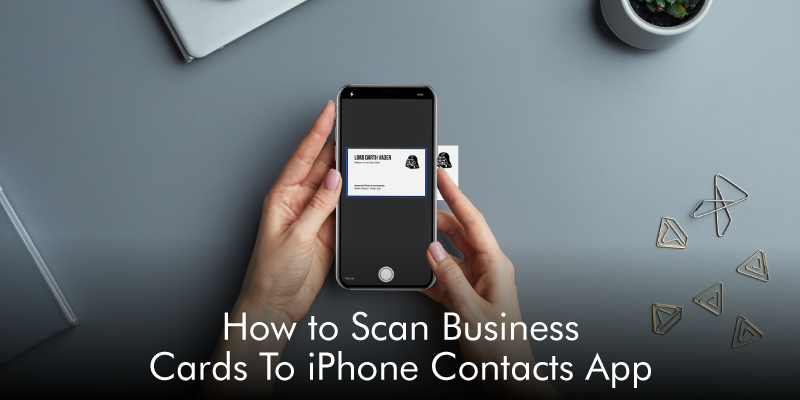
During the pre-Covid-19 period, you may have exchanged many business cards, and you have in turn, ended up with many business cards on your desk. Now, the post Covid-19 time is here. You want to follow up on those contacts, but you cannot hold face-to-face meetings yet. You try to add the contacts to your iPhone contacts app manually, and you feel overwhelmed. Keep calm because we have a solution for you in this article.
Continue reading…
Do you know that you can manage your contacts easily on My Google Contacts? When you create a Gmail account and use it to send emails or back up contacts, Google will create a Gmail address book for you. As a business owner, you must be having many contacts created on your Google Contacts, but you might have never used it.
Continue reading…
If you are a salesperson or part of a marketing team, proper contact management is crucial. Before the advent of cloud computing, organizations and individuals used to store and manage their contacts on personal devices. However, cloud storage has made it incredibly simple to organize and retrieve contacts across devices at any given time.
Continue reading…

One way to curb the spread of Covid-19 is to maintain social distance. As a result, most companies have allowed their employees to work from home to adhere to Covid-19 government guidelines. If you are among the people working from home, you might want to grind your work as though you could be in the office.
Continue reading…