

Adding pictures to contacts in your address book is a great way to make the people in it more recognizable and more personal. In this how-to article we are going to see how to easily add a picture to your contacts in Google Contacts.
Before you begin, make sure you have a picture you want to use saved on your computer. If you don’t have a picture, we developed an easy to use app that searches the web for pictures of your contacts. All you need to do, is tap the picture you want added. You can download it here.
If you have pictures for your contacts saved on your computer and want to add them manually, follow the steps below:
1) Go to Google Contacts and click on the desired contact.
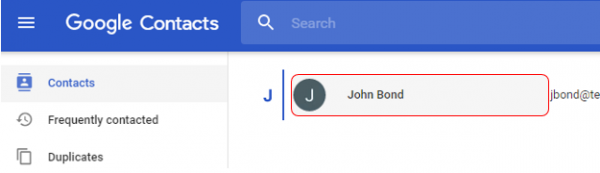
2) Click on the letter next to your contacts’ name to set contact photo.
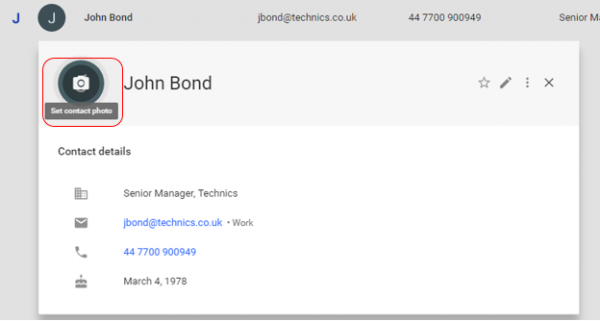
3) Then, click on Upload Photo.

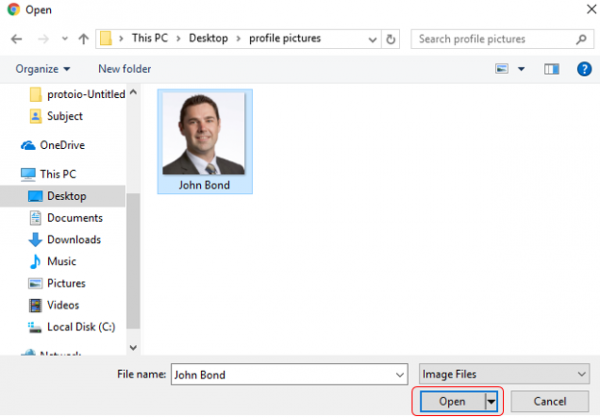
4) Locate the picture of your contact and click Open.
5) Once your photo is uploaded, you have the option to crop your image, or rotate it. Click Done.

6) Now, your contact is updated with a photo.

We are obsessed with everything about contacts so feel free to reach out to us on [email protected].




2 Comments
Kristi 8 years ago
I did this as described and the picture I uploaded is displayed on the contacts page, however on hangouts on my computer and on my phone, it still just shows a big color circle with initial. How can I get the picture to display on hangouts?
pressefr 8 years ago
For picture to display in Hangouts, they themselves need to add their photo 📸 in Google+ profile attached to their @gmail account.
It can be set if anyone has your email it can autofill your phone number, company, and job title automatic. So when you change positions it’s always up to date.
Thank you, your comment successfully submitted
your comment has been submited, it might take a while to be moderated.