
If you use Windows Live, or Outlook (previously known as Hotmail) then you will probably have lots of contacts saved in your email’s address book. You can sync your Outlook contacts to any device including iPhone and Android devices.
You can review this address book by logging into your Outlook account on a computer or mobile device.
Go to People and check the list to make sure everything is correct.
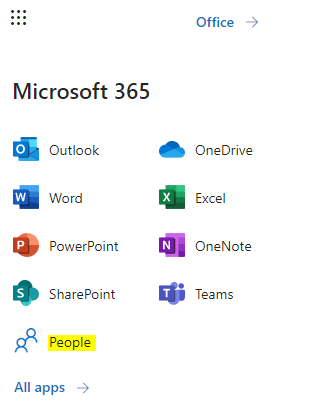
You can edit or delete contacts as required – so long as you are connected to the internet the device will backup when you are done.
To sync Outlook contacts with your Phone:
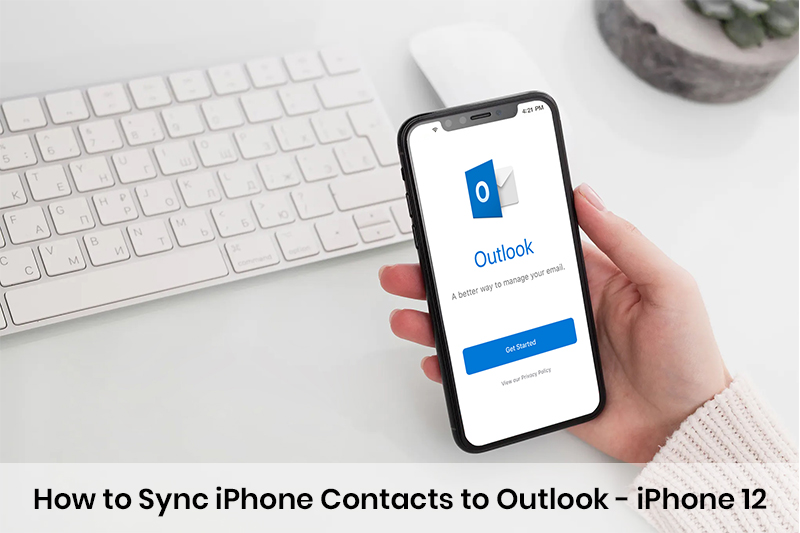
If you’re using an iPhone, head to accounts under “Settings” > “Passwords & Accounts” > “Outlook” and “Contacts” > “On” > “Save”
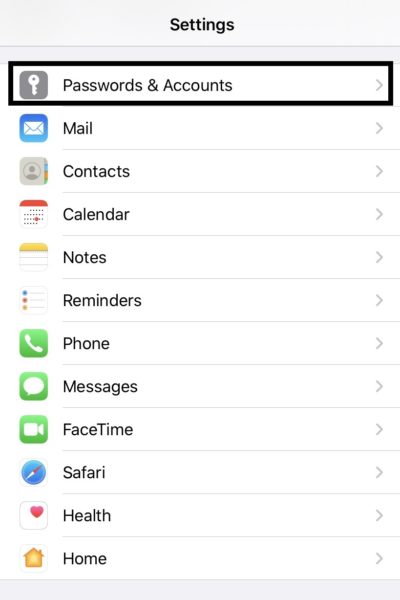
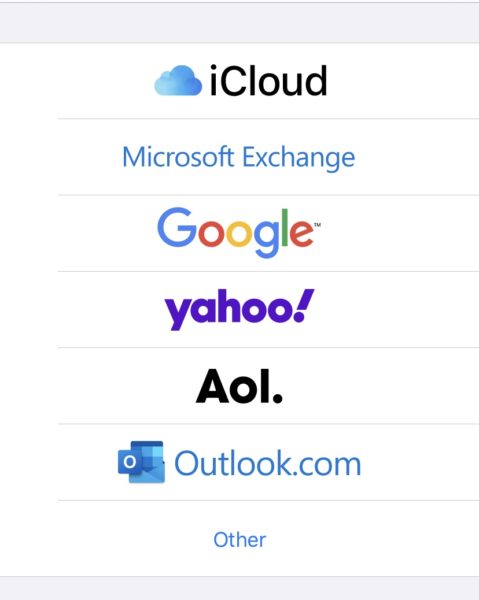
Sign in with your Outlook account and the new contacts will be imported and stay in sync.
If you have an Android phone head to the Settings and head to the “Users & Accounts” > “Add Account”.
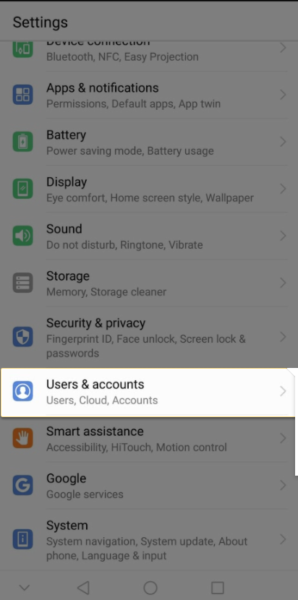
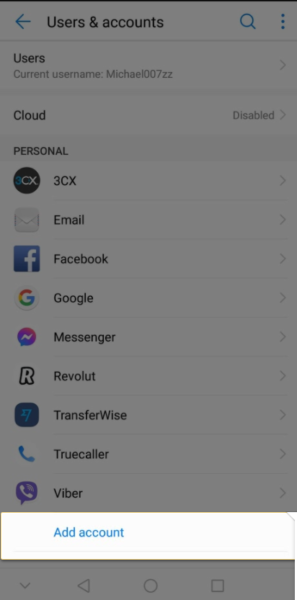
Or “Settings” > “ Applications” > “Outlook” > “Permissions” > “Contacts” > select “Enable”
Sign in with your Outlook account then open “Setting” , click on the relevant account > select “Sync Contacts”.
And you’re done!
To help you manage your contacts better, get automated reminders, and organize personalized weekly call schedules, get Covve, the smartest address book app. To download Covve for free on iOS or Android click here!
Updated on November 10, 2020



2 Comments
Mike Smith 7 years ago
The contacts between my laptop and my Android were syncing but theyve stopped. Ive tried the above but it doesnt fix it, Help please.
Paula Kolaczek 7 years ago
Hi Mike, thanks for writing in – this is Paula from Covve.
Please check if the sync is activated by following the instructions below:
Open phone Settings > Applications > Outlook > Make sure Contacts is enabled.
Then open the Outlook app and go to Settings > tap on your account > tap Sync Contacts.
Hope this helps!
Best regards,
Paula
Thank you, your comment successfully submitted
your comment has been submited, it might take a while to be moderated.