

Google contacts provides an easy way to export your contacts to csv (for details on how to export have a look at How to export Google contacts to CSV).
With a bit of data manipulation this gives you a great opportunity to be able to edit your contacts directly in Excel, allowing you to rapidly make bulk changes to your contacts. This is much faster than manually editing one contact at a time from Google’s interface.
The process involves the following steps:
- Export your contacts to Google csv
- Import into Excel
- Edit in Excel
- Export to csv
- Import to Google
- Merge with existing contacts
Step 1: Export your contacts to Google csv
For instructions on this step please refer to the dedicated article.
Step 2: Import into Excel
To import into Excel, load up a new Excel spreadsheet.
Now, go to the “Data” tab and select “From Text”
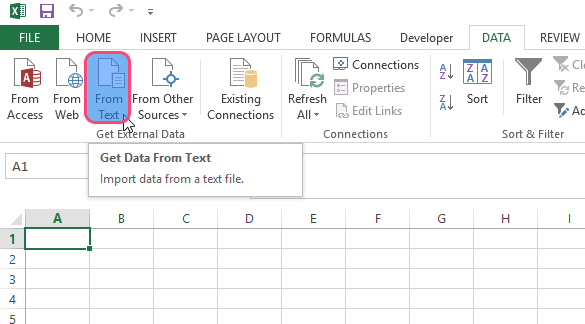
Select the csv file you exported in step 1
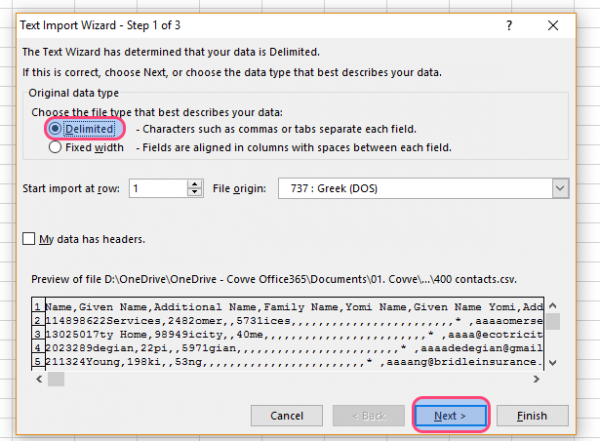
Choose “delimited” and press Next
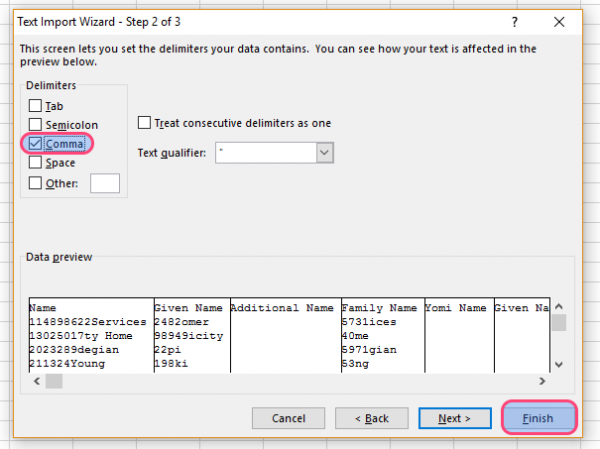
Choose “comma” and press Finish
On the final prompt press OK
You now have a spreadsheet with all your contact information!
Step 3: Edit in Excel
You’ll notice that Excel will import a whole host of columns – up to around 160 of them.
Don’t worry thought, the most important ones are quite obvious. Here’s a quick overview:
- Name: When editing the name fields note that someone’s first name is the column “Given Name” and their Surname is “Family name”. If you edit either of these fields, make sure to update the “Name” field. The “Name field is what you actually see in google contacts and is usually automatically calculated by combining Given name and Family name. Yomi name is the phoenetic representation of a name… you can usually just ignore this!
- Email: You can edit a contact’s emails in the Email columns. Note that each email will have two columns, one for type and one for “value” which represents the actual email address. The type column can be blank if you want
- Phone: Much like email, each phone has two fields
- Address: Address entries have up to 9 fields. Feel free to use whichever of these are relevant to you
- Organisation (work/job/company): These entries have 8 fields in total. However the ones you’ll most likely be interested in are Organization 1 – Name (the company’s name) and Organization 1 – Title (the person’s job title)
Step 4: Export to csv
Now that you’ve made all your edits you can export back to csv format.
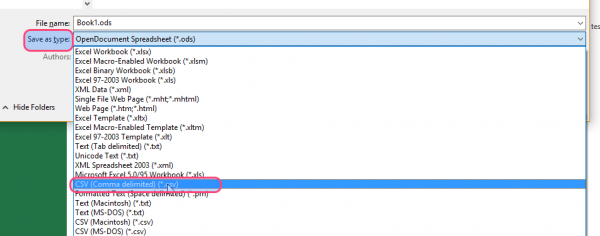
To do this press File and Save As and choose “CSV (comma delimited)” type
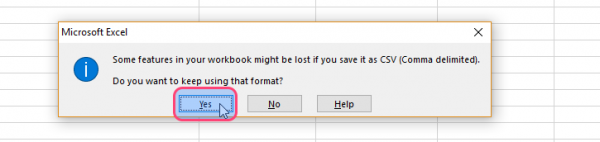
Excel is likely to show a warning. Press “Yes”
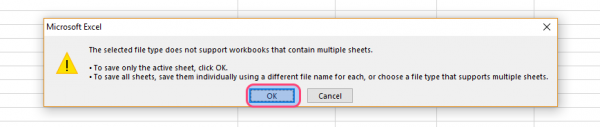
If you see a second warning, press OK again.
Step 5: Import into Google contacts
To import your new csv file back into Google contacts go to More and Import and choose the file.
For detailed instructions please refer to the dedicated article here.
Step 6: Merge with existing contacts
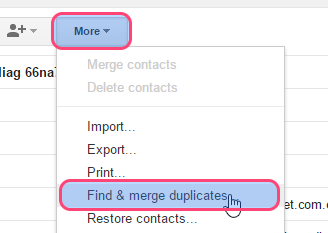
Having imported your freshly edited contacts you now have two copies of each contact in Gmail (the original one and the edited one). All you need to do is merge them by going to More and then “Find & Merge Duplicates”
Easily export contacts and pictures from your phone
Did you know that Covve can help you export contacts and pictures from your iPhone or Android phone at a tap of a button? Export contacts by Covve is the easiest way to export your contacts in an excel-compatible format.
Click here to download Export contacts by Covve on your iOS device now!
Click here to download Export contacts by Covve on your Android device now!





8 Comments
Bobby Zopfan 8 years ago
I’ve imported a CSV file into Google Contacts hundreds of times without problem. But today, no matter what I try, I’m not able to import any contact into Google contacts.
Even I’ve tried exporting a few contacts from Google Contacts as a CSV file and then without even touching that file, I tried to reimport that file into (same or diff ) google account, but nothing comes. Sometimes an ‘Unknown error’ is reported, but most of the time, no error shows. Just nothing happens.
Alex Protogerellis 8 years ago
Hi Bobby,
Alex here from Covve, thanks for writing!
We’ve seen this behaviour from google occasionally. Sometimes it happens if you’ve tried to import too many contacts, too frequently. Google seems to stop responding to import requests. Other times it is just random, perhaps the google systems get overloaded sometimes.
One thing to be careful of… sometimes these improrts do come through eventually – so you may find yourself with multiple copies of the same contacts!
My suggestion would be to wait for a day or so and re-try the import.
Hope this helps!
All the best,
Alex
Edit: Bobby got in touch to say that the imports did come through eventually and also suggested two workarounds to “force” imports which I’ll gladly share:
Workaround1: I imported my CSV file into Yahoo and then in new Google Contacts Import command, there was 1 option, directly import from Yahoo.
Workaround2: I imported my CSV contacts into Outlook on my PC/Windows, and then again in new GC interface, there was an option which let me directly import from my outlook into GC (it used an addon, automatically).
Aditya 8 years ago
THANKS A TON YOU HAVE SAVED MY 2 TO 3 NIGHTS BY THIS
Ayoola Stephen Efunkoya 8 years ago
God bless you for this life-saving article.
Floris 8 years ago
Any advice on dealing with the multi-line Notes field in the CSV? Google exports to a text field enclosed in double quotes, but includes line breaks. Result is that a contact with a multi-line notes field is imported into multiple lines, and everything after the notes field is distributed wrong over the columns. Ideally, one should be able to select which fields are exported. But barring that, I can’t work out a way to import the csv without the notes fields making a mess of things.
Paula Kolaczek 8 years ago
Hi Floris, thanks for writing!
So, we’ve just run a quick test for this. It seems that on the setup we’re using this actually works well. Lets have a look at some screenshots:
1) https://gallery.mailchimp.com/d31957626e1d80c567270b0a7/images/29db703d-196f-4a54-85b2-76fd2deccf81.png – Here you can see that we have a contact (called “A”) with a multiline note
2) https://gallery.mailchimp.com/d31957626e1d80c567270b0a7/images/986685c7-c444-48b0-9a74-b4652ca79298.png– Here we can see that, as you say, the export encloses the note in quotation marks
3) https://gallery.mailchimp.com/d31957626e1d80c567270b0a7/images/6067f049-9093-419f-ba36-27a4772dd004.png – Here we see that excel treats the multiline note correct. It is imported in a single cell, with the line breaks included within the cell.
So, if this isn’t happening for you it could be because your setup is slightly different (e.g. we’ve used windows 10 and excel 2013 for this test).
Hope this helps!
Paula
Hanh Nguyen 8 years ago
Thank you very much for your article.
I would like to know how to import and save all my contacts, each field line by line into Notepad or Word as a backup. Saving in Excel format would not work for me because I have too many phone numbers and labels, and my notes are long. Grateful if you would shed some lights.
Paula Kolaczek 8 years ago
Hi Hanh, hope you’re well – this is Paula from Covve.
You can open the CSV using both Notepad and Word. You do that by opening either program, go to File/Open, locate the CSV and open it.
It will not look neat because of the number of columns- it will not fit on 1-line, but all the information will be there and it can serve as a backup file for your contacts.
Also note that Gmail already keeps a backup of your contacts and you can restore to a previous version of your contacts.
Hope this helps!
Best regards
Thank you, your comment successfully submitted
your comment has been submited, it might take a while to be moderated.